



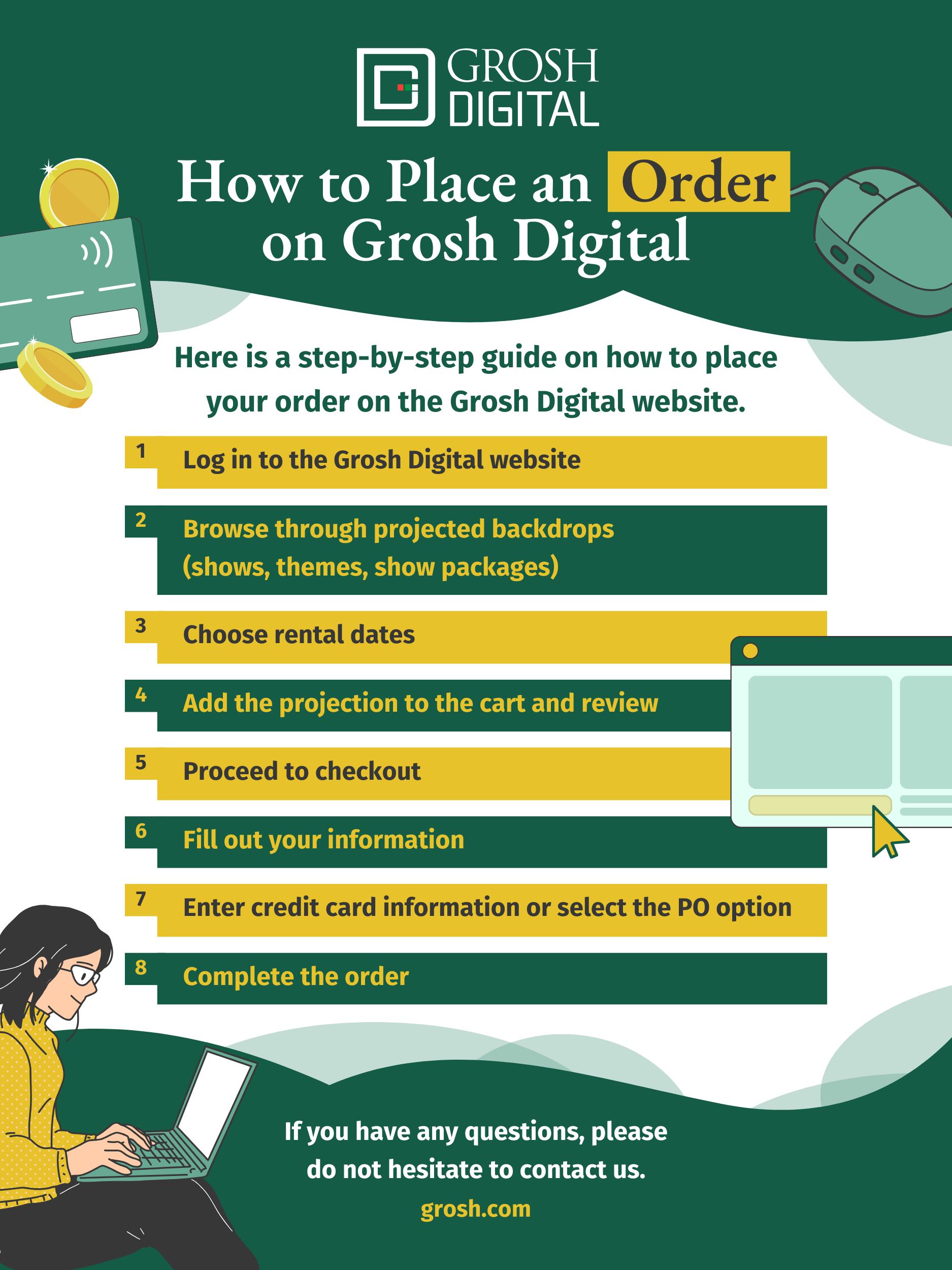
Ordering Grosh Digital Backdrops is easy. Here is a step-by-step guide on how to place your order.
Log In to Grosh Digital Website
Start by going to the login at the top of the page. Here you can log in to an already existing account or create a new account.
Create a New Account if You Do Not Have One
If you already have an existing Grosh Backdrops login, you will still need to create a new account on Grosh Digital.
Browse Through Projected Backdrops
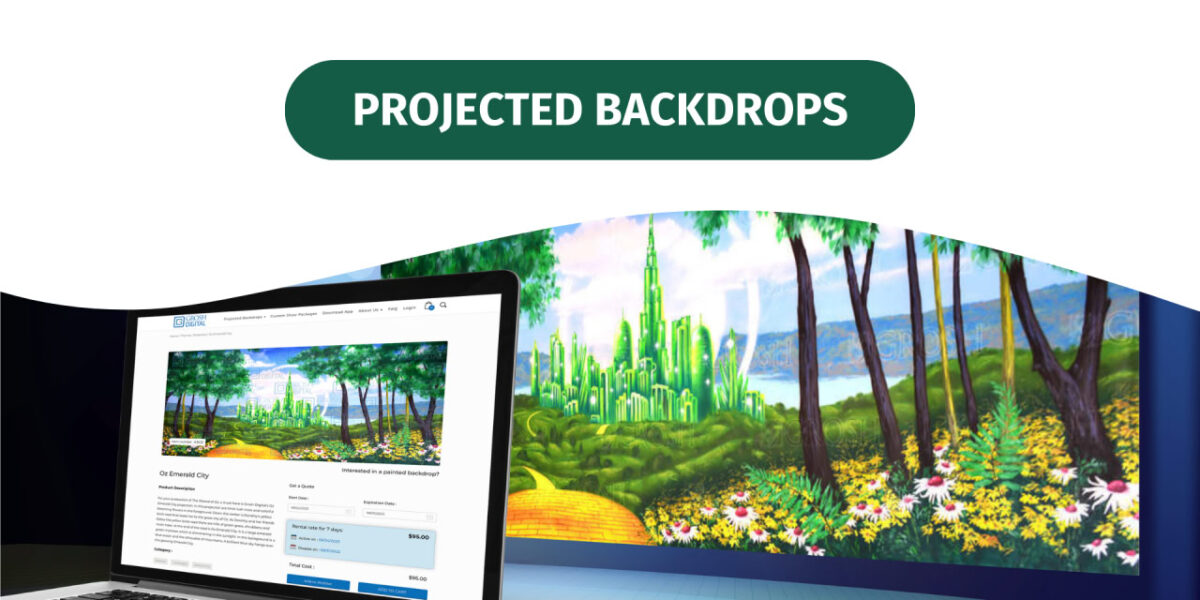
Once you log in to your account, you will be taken back to the homepage of Grosh Digital. At the top of the page, you will see the projected backdrops drop-down menu. You can view the different show packages, themes, and all animation and still images in our collection.
Show Packages
Also at the top are our custom show packages. Here we offer two types of packages. Our premium show package is $750, containing 10 projections, and our standard show package is $450, containing five projections.
Customizing Show Packages
To start, select one of the packages you wish to start customizing. To add an animation or still, click this button. An additional window will pop up. Here you can sort our digital backdrops by show or theme, or you can search keywords.
Browsing by Show
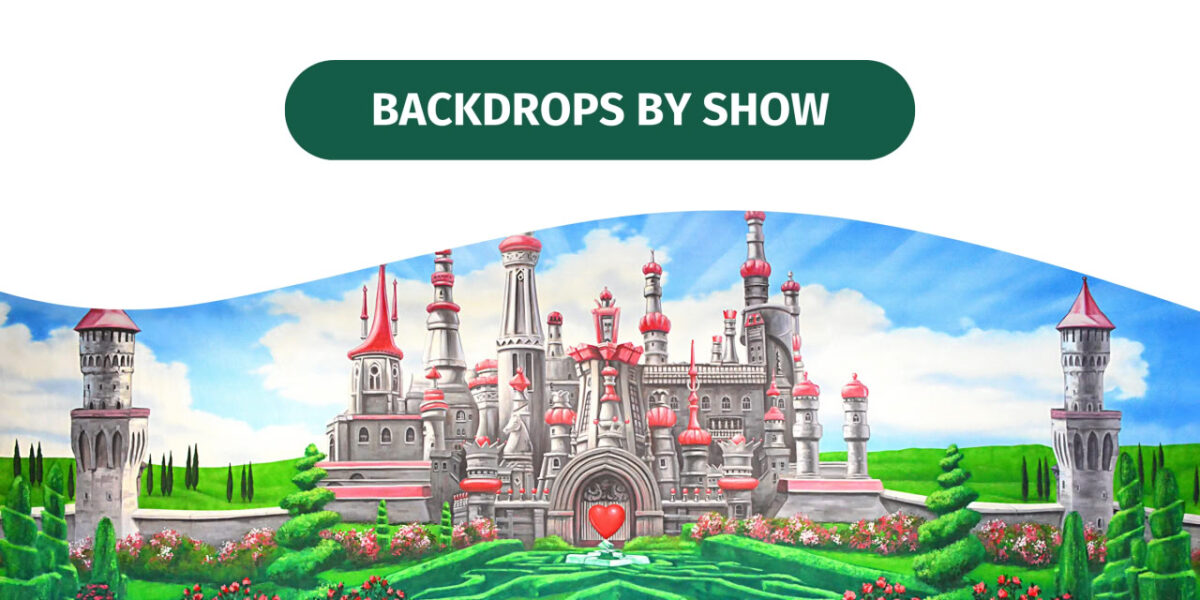
In the shows tab, you can view all the backdrops that our backdrop consultants have selected for shows. Our shows include Alice in Wonderland, Cinderella, Hairspray, West Side Story, and many more.
Browsing by Theme
In the theme tab, we sorted our backdrops by the type of image. Whether you are looking for a castle or a forest, this will show you all the available projections of that theme in our collection. If you are producing a production of The Little Mermaid, you can simply go to our show page.
Preview Animation
Our animated images will have a video camera in the left-hand corner of the thumbnail. To view how an animation will look while it’s being projected, simply click on the magnifying glass, and it will play the animation in a video player. When you exit the player, you will be taken back to the top of the show page. You can scroll down to find the projection again.
Add Projection to the Package
To add a projection to your package, click on the name of the projection. You can also use the magnifying glass to get a closer look at the still images. In your package, you will see that each projection is listed as animated or still.
Choose Rental Dates
Once you have selected all your images for the package, you will need to choose your rental dates. These are the dates you will be using the unwatermarked images for your production. Grosh Digital rents projections starting at a weekly rate.
Weekly Rates
Every additional day past a week will cost an additional rate. For example, a rental for 2 weeks will cost the standard $450 weekly rate and an additional $87.50 for the second week. Once you are satisfied with your dates and projections, click continue to checkout.
In the cart, you will see your package. You may only see one image in the cart, but the package does list all your selected backdrops next to the image. If you want to replace an image before you check out, click edit package. Confirm your rental dates here.
Adding Another Projection to the Package or Renting Without Using Packages
If you need to add another projection after your package is completed, or you are not using our packages, you can rent a digital backdrop like this.
Search by Keywords
Using the search bar, you can search keywords or terms you may be interested in. Anything that matches that term will come up here.
To view a pop-up of the image or animation, click the thumbnail. To view the details of the projection, click on the name. On this page, if the projection is offered as an animation or an image, you can select it here.
The dates you had previously selected are listed here. If you have not selected your dates, you can do so on this page.
Add Projection to the Cart and Review
To add this projection to your cart, simply click add to cart. After a moment, your cart will be updated, and you can review it by clicking the bag in the upper right-hand corner of the screen.
Proceed to Checkout
Once you review all your projections and your rental dates are correct, click Proceed to checkout.
Fill Out Your Information
On this page, you will need to fill out your information. It may already be filled out if you have an existing account with Grosh Digital. Most importantly, make sure that all the forms are filled in, as you will not be able to place your order if anything is left blank.
Choose Your Industry
There are several industries to select from, including K through 12 (K-12) school, dance, and theater company. Please select the closest category to your business industry.
Enter Credit Card Information or Select PO Option
After completing and making sure all forms are filled out, click continue. On this final page, you can enter your credit card information to complete your order. If you are a K through 12 (K-12) school or a university, we can accept a purchase order for your order. Just select the PO option and read the instructions to complete your order. Purchase orders must be received and accepted before your production dates.
Terms and Conditions
After selecting your payment method, select I have read the terms and conditions. You can click on them to review.
Complete the Order
Click Place Order to complete the order. If you have paid with a purchase order, you can use this page to submit a requisition to your school or collect an invoice from the My Account page.
You can go back to My Account to view all your current and past orders and their status.
If you have paid with a credit card, your images will be available for immediate use within the Grosh Digital desktop app. You can use the files for rehearsal and only click activate when you are ready to use them for your show dates.
If you have any questions, please do not hesitate to contact us.